
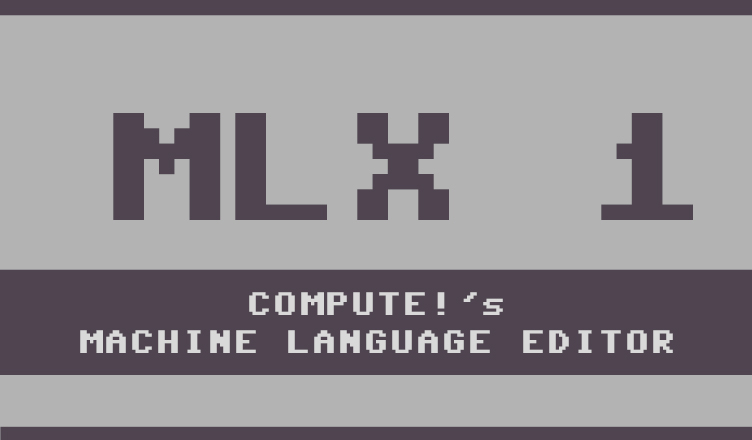
Title – MLX (version 1)
System – Commodore 64
Author – Charles Brannon
Publication – COMPUTE! and COMPUTE!’s Gazette, from December, 1983 to December, 1985. This scan was taken from the December, 1983 issue.
Page Scans – 1 2 3 4 5 6
Preserved by – eboy71
Recommended Emulator – VICE
/MLX-I-Screenshot1.jpg)
/MLX-I-Screenshot2.jpg)
Loading the Utility –
- Mount the disk image (Compute MLX I.d64) in your emulator. In VICE, this is done by selecting File → Attach Disk Image
- Load the app by typing LOAD”MLX V1”,8
- Once loaded, type RUN to start
Article Text
MLX is a labor-saving utility that allows virtually foolproof entry of all-machine-language programs published in COMPUTE’s Gazette. You need to know nothing about machine language to use MLX—it was designed for everyone. Important: MLX is required to type in the machine language games in this issue, such as “Spike” and the 64 version of “Space Duel.”
Have you ever typed in a long machine language program? Chances are you typed in hundreds of DATA statements, numbers, and commas. You’re never sure if you’ve typed them in right. So you go back, proofread, try to run the program, crash, go back and proofread again, correct a few typing errors, run again, crash, recheck your typing…. Frustrating, isn’t it?
Until now, though, that has been the best way to enter machine language into your computer. Unless you happen to own an assembler and are willing to wrangle with machine language on the assembly level, it is much easier to enter a BASIC program that reads the DATA statements and POKEs the numbers into memory.
Some of these BASIC loaders, as they are known, check to see if you’ve typed the numbers correctly with a checksum. The simplest checksum is just the sum of all the numbers in the DATA statements. If you make an error, your checksum will not match up. Some programmers make the task easier by calculating checksums every ten lines, so you can zero in on your errors. The Automatic Proofreader introduced in the October issue of COMPUTE!’s Gazette is a more sophisticated variation of the checksum concept.
But now there’s an even better way than the Automatic Proofreader to enter programs written completely in machine language. “MLХ” lets you type in long machine language listings with almost foolproof results. Using MLX, you enter the numbers from a special list that looks similar to BASIC DATA statements. MLX checks your typing on a line-by-line basis. It won’t let you enter illegal characters when you should be typing numbers, such as an l for a 1 or an О for a 0. It won’t let you enter numbers greater than 255 (which are not permitted in ML DATA statements). It will prevent you from entering the wrong numbers on the wrong line. In short, MLX should make proofreading obsolete!
In addition, MLX will generate a ready-to-use tape or disk file. You can then use the LOAD command to read the program into the computer, just like with any program. Specifically, you enter:
LOAD “program” 1,1 (for tape)
or
LOAD “program” 8,1 (for disk)
To start the program, you need to enter a SYS command that transfers control from BASIC to machine language. The starting SYS will always be given in the article accompanying the machine language program.
Tо get started, type in and save MLX (you’ll need it for future ML programs published in COMPUTE!’s Gazette). Be sure to use the Automatic Proofreader to make sure you’ve typed in MLX correctly—MLX can’t check itself. When you’re ready to type in the ML program, such as the “Spike” game in this issue, run MLX. The program will ask you for two numbers: the starting address and the ending address. These vital numbers can be found in the article accompanying the ML program. The Spike article, for example, gives a starting address of 32768 and an ending address of 37295.
Next you’ll see a prompt. The prompt is the current line you are entering from the listing. Each line is six numbers plus a checksum. If you enter any of the six numbers wrong, or enter the checksum wrong, the Commodore 64 will ring a buzzer and prompt you to reenter the line. If you enter it correctly, a pleasant bell tone will sound and you proceed to the next line.
You are not using the normal Commodore 64 screen editor with MLX. For example, it will accept only numbers as input. If you need to make a correction, press the INST/DEL Key; the entire number is deleted. You can press it as many times as necessary back to the start of the line. If you enter three-digit numbers as listed, the computer will automatically print the comma and prepare to accept the next number. If you enter less than three digits, by omitting beginning zeros, you can press either the comma, space bar, or RETURN key to advance to the next number. The checksum will automatically appear in inverse video; don’t worry, it’s highlighted for emphasis.
When testing MLX, we’ve found that it makes entering long listings extremely easy. With the audio cues provided, you don’t even have to look at the screen if you’re a touch-typist. We have tested MLX with people lacking any computer background whatsoever. No one has ever managed to enter a listing wrong with it.
When you finish typing, assuming you type the entire listing in one session, you can then save the completed program on tape or disk. Follow the screen instructions. If you get any errors while saving, you probably have a bad disk, or the disk is full, or you made a typo when entering the MLX program. (Remember, it can’t check itself, though the Proofreader can.)
What if you don’t want to enter the whole program in one sitting? MLX lets you enter as much as you want, save the whole schmeer, and then reload the file from tape or disk when you want to continue. MLX recognizes these few commands:
SHIFT-S: SAVE
SHIFT-L: LOAD
SHIFT-N: New Address
SHIFT-D: Display
Hold down SHIFT while you press the appropriate key. You will jump out of the line you’ve been typing, so I recommend you execute these commands at a new prompt. Use the SAVE command to save what you’ve been working on. It will write the tape or disk file as if you’ve finished, but the tape or disk won’t work, of course, until you finish the typing. Remember what address you stop on. The next time you run MLX, answer all the prompts as you did before, then insert the disk or tape. When you get to the entry prompt, press SHIFT-L to reload the file into memory. You’ll then use the New Address command to resume typing.
Here’s how the New Address command works. After you press SHIFT-N, enter the address where you previously stopped. The prompt will change, and you can then continue typing. Always enter a New Address that matches up with one of the line numbers in the special listing, or else the checksum won’t match up.
You can use the Display command to display a section of your typing. After you press SHIFT-D, enter two addresses within the line number range of the listing. You can abort the listing by pressing any key.
The special commands may seem a little confusing, but as you work with MLX, they will become valuable. What if you forgot where you stopped typing, for instance? Use the Display command to scan memory from the beginning to the end of the program. When you see a bunch of 170s, stop the listing by pressing a key and continue typing where the 170s start. Some programs contain many sections of 170s. To avoid typing them, you can use the New Address command to skip over the blocks of 170s. Be careful, though, you don’t want to skip over anything you should type. You can use the MLX SAVE and LOAD commands to make copies of the completed ML program. Use LOAD to reload the tape or disk, then insert a new tape or disk and use the SAVE command to make a new copy.
One quirk about tapes made with the SAVE command: when you load them, the message “FOUND program” may appear twice. The tape will load just fine, however.
(Programmers will find MLX to be an interesting program in terms of protecting the user from mistakes. There is also some screen formatting. Most interesting is the use of ROM Kernal routines for LOADing and SAVEing blocks of memory. Just POKE the starting address [low byte/high byte] into 251 and 252, and POKE the ending address into 254 and 255. Any error code can be found in location 253—an error would be a code less than ten.)
We hope you will find MLX to be a true labor saving utility. Since it has been thoroughly tested by entering actual programs, you can count on it as an aid for generating bug-free machine language. And be sure to save МLХ; it will be used for future all-machine-language programs in COMPUTE!’s Gazette.
Editor’s Notes:
- This is the first version of MLX published by COMPUTE! & COMPUTE!’s Gazette. The second version (called either MLX II or The New MLX) was released in December, 1985.
- The two versions of MLX are not compatible; they are entirely different utilities. Some notable differences:
- MLX I uses 3-digit numbers as input; MLX II uses 2-digit hexadecimal numbers
- The proofreading functions in MLX I are good, but are significantly improved in MLX II
- Charles Brannon, the author of MLX I, was a program editor at COMPUTE! From 1980-1986 and wrote many programs and utilities while there, including the very popular SpeedScript, a word processor for the Commodore 64.




/COMPUTE-Dec-1983-p162.jpg)
/COMPUTE-Dec-1983-p164.jpg)
/COMPUTE-Dec-1983-p166.jpg)
/COMPUTE-Dec-1983-p229.jpg)
/COMPUTE-Dec-1983-p230.jpg)
/COMPUTE-Dec-1983-p231.jpg)